

By Dan Gordon
Last Updated: October 29, 2026
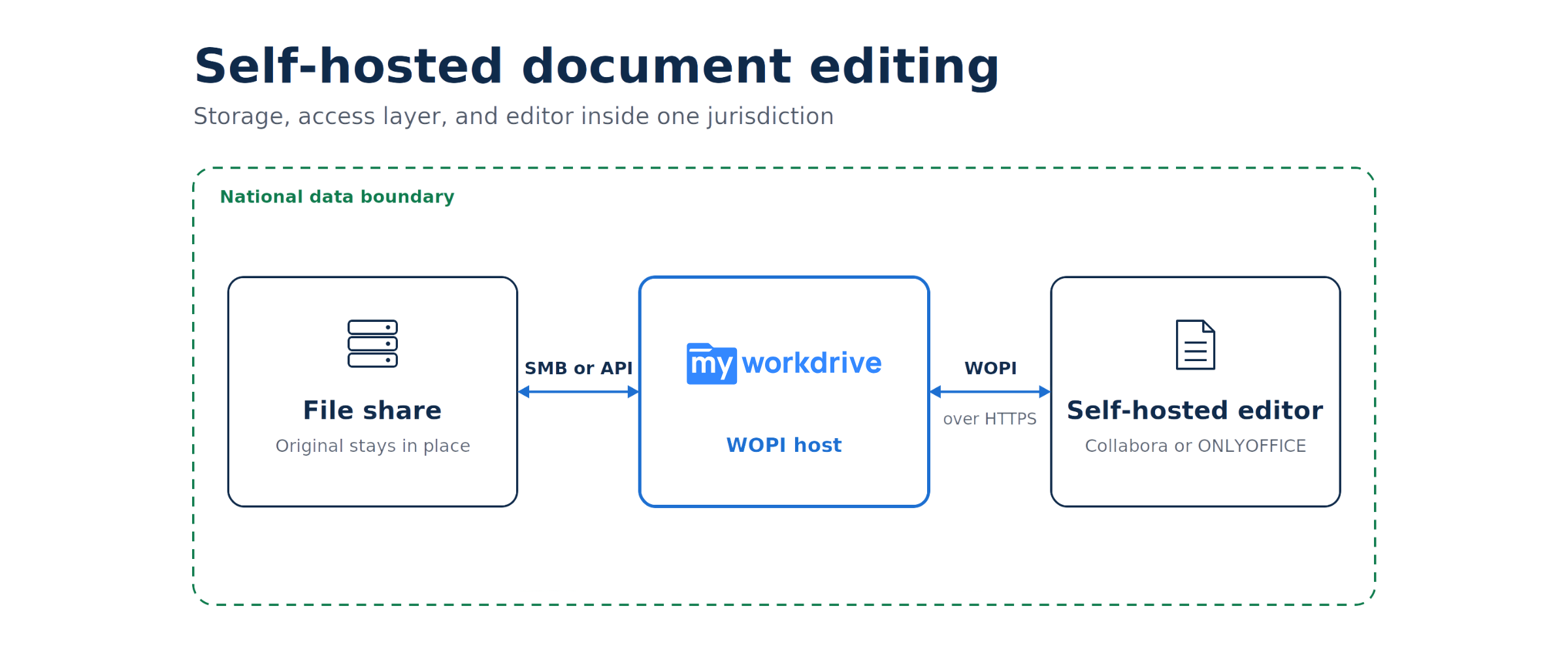
Yes. A Word, Excel, or PowerPoint file can stay on your Windows file server for its entire life and still be edited in Microsoft 365 for the web. The file server keeps the authoritative copy. While someone is editing, a temporary working copy sits in your own Microsoft 365 tenant, placed there through Microsoft Graph, and it is deleted when the session closes. If your organization cannot accept even a temporary copy in Microsoft's cloud, a self-hosted editor keeps the whole session on your network.
This article explains how that staging works at the API level and where the document physically sits at each point in a session. The second half covers the compliance obligations that attach to the temporary copy and the cases where an on-premises editor is the better design.
| Editing method | Where the authoritative file lives | Where the working copy lives while editing | Does a cloud service hold a copy? |
|---|---|---|---|
| Office for the web through Microsoft Graph staging | Your file server | The editing user's OneDrive for Business or a dedicated SharePoint Online site in your tenant | Yes, temporarily, inside your Microsoft 365 tenant |
| ONLYOFFICE Docs or Collabora Online, self-hosted | Your file server | Memory on the editor server you run | No |
| Office Online Server, self-hosted | Your file server | Memory on the Office Online Server you run | No (Microsoft retires the product on December 31, 2026) |
| Desktop Office over a mapped drive | Your file server | The user's workstation | No |
The Common Assumption: Microsoft 365 Editing Requires Cloud-Hosted Files
Most IT teams first meet Office for the web inside OneDrive and SharePoint, where a document opens in the browser with one click. Microsoft's integration options for other storage reinforce the idea that the file has to live in somebody's cloud.
Third-party storage reaches Office for the web through the Cloud Storage Partner Program (CSPP), which is built on the WOPI protocol. Microsoft restricts it to cloud storage vendors:
“The Microsoft 365 - Cloud Storage Partner Program is for independent software vendors whose business is cloud storage. It's not open to Microsoft 365 customers directly.”
Source: Microsoft Learn, Cloud Storage Partner Program overview
The program's eligibility rules also require partners to store end users' files in a cloud location the partner owns or leases, and specifically not in any location owned, leased, or subscribed to by the partner's customers. A customer-owned file server in your data center does not meet that requirement.
The self-hosted route was Office Online Server, a WOPI editor that organizations ran on their own hardware. Microsoft has announced that Office Online Server will be retired effective December 31, 2026.
Taken together, those facts lead many teams to conclude that browser editing means migrating file shares into SharePoint or OneDrive. That migration carries real cost in re-permissioning and project time, and our MyWorkDrive vs SharePoint decision guide covers when it is worth doing. Microsoft's editor does need to reach the file through a Microsoft 365 service. The file only has to be present there while someone is editing it, and Microsoft Graph is the API that makes a temporary presence practical.
How Microsoft Graph Enables Editing of Files Held on Local Storage
Microsoft Graph is the REST API for OneDrive and SharePoint content. An application with the right permissions can upload a file into a drive, read it back, create a sharing link to it, and delete it. A single request uploads files up to 250 MB, and Microsoft directs larger files to a resumable upload session.
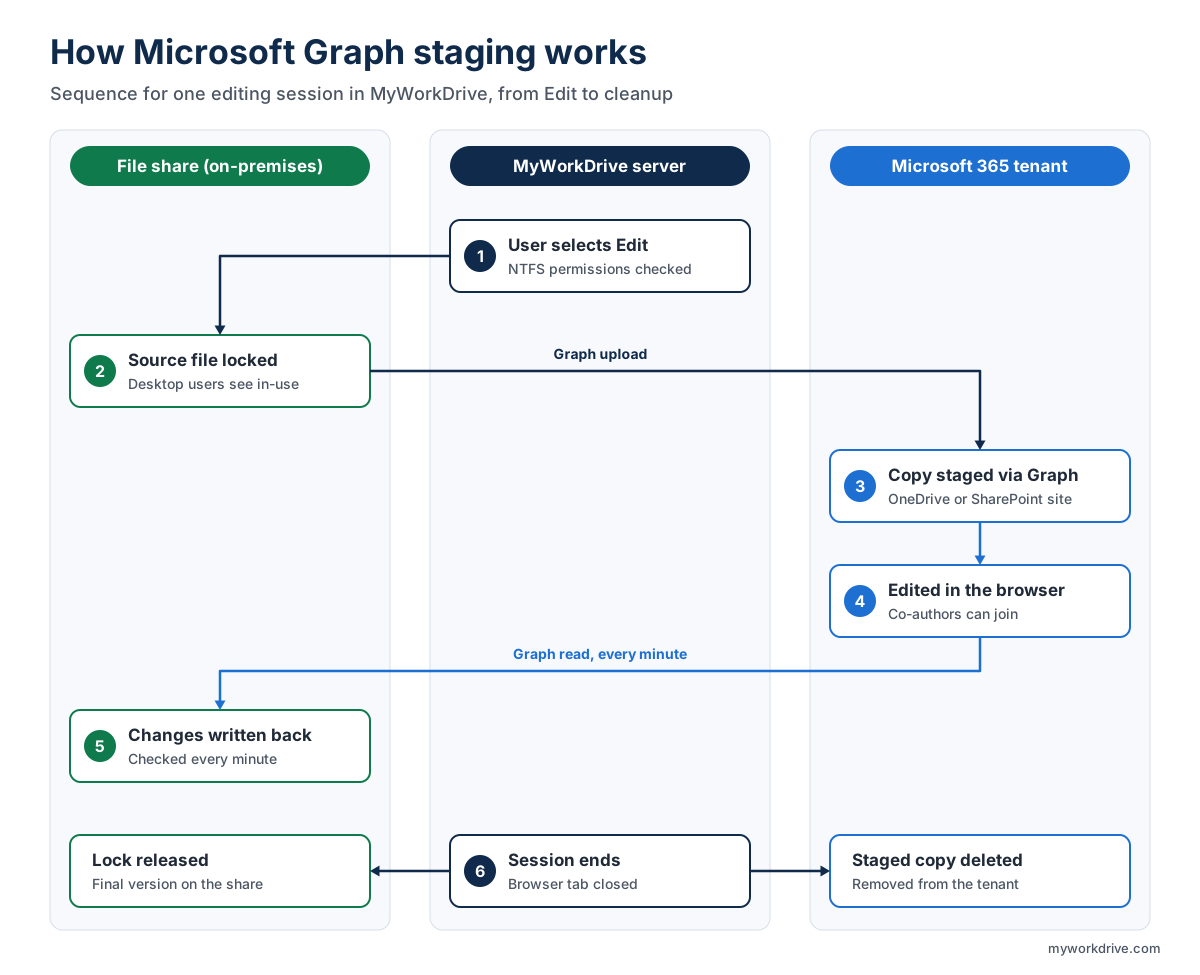
A gateway that sits in front of a file server can use those calls to stage a file for editing and pull the result back. Here is the sequence MyWorkDrive follows, as documented in its Office Online editing setup guide:
- A user selects Edit on a Word, Excel, or PowerPoint file from a MyWorkDrive client. The share's NTFS permissions decide whether that user may edit at all, and online editing never grants rights the user does not already hold.
- MyWorkDrive locks the source file on the share. Anyone who opens it through a mapped drive or desktop Office sees a file-locked message.
- The MyWorkDrive server copies the file through Microsoft Graph into a staging location in your tenant. Depending on the mode the administrator chose, that location is the editing user's OneDrive for Business or a dedicated SharePoint Online site.
- Office for the web opens the staged copy in the user's browser. Other users can join as co-authors.
- The server checks the staged copy for changes every minute and copies any changes back to the Windows file share.
- When the user closes the browser tab, the server writes back the final changes, deletes the staged copy, and releases the lock. If the connection drops, the server keeps retrying the removal until the file is unlocked in Microsoft 365.
Two staging modes with different permission models
The two modes differ mainly in whose identity Graph uses. OneDrive mode uses delegated permissions and acts as the signed-in user, so the staged copy lands in that user's own OneDrive. A global administrator grants consent, and the app can be restricted to your tenant ID.
SharePoint service mode runs as an application with the Sites.Selected permission. Microsoft designed Sites.Selected to grant nothing on consent alone. A SharePoint administrator has to assign the app a role on a specific site before it can touch any content, so the MyWorkDrive app can write to the staging site and nowhere else in the tenant. Editing users need no permissions on that site.
| Attribute | OneDrive mode | SharePoint service mode |
|---|---|---|
| Staging location | The editing user's OneDrive for Business | One dedicated SharePoint Online site |
| Graph permission type | Delegated (acts as the signed-in user) | Application (acts as the MyWorkDrive app) |
| Graph permissions | User.Read, Files.ReadWrite.All, Sites.Read.All | Sites.Selected, with write access assigned to the staging site only |
| Tenant restriction | Allowed Tenant ID plus global administrator consent | App access limited to the one assigned site |
| Recycle bin management | No management option | Site owners can restore files or empty the bin, including with Power Automate |
| External sharing control | Organization level | Site level |
| Co-authoring | Supported; the original opener may appear as the editor because the copy sits in their OneDrive | Supported through a temporary sharing link restricted to your organization |
| Setup effort | Admin panel wizard, with a hosted app option | Site creation and a PnP PowerShell permission grant; MyWorkDrive recommends involving its support team |
| Minimum MyWorkDrive Server version | 6.0 | 6.1.1 |
Where the Document Actually Resides During an Editing Session
The location of the content changes as a session moves from open to closed, and an auditor reviewing your data flow diagram will want each stage accounted for.
| Session stage | Authoritative file | Temporary working copy | What governs it |
|---|---|---|---|
| Before editing | On the file share under NTFS permissions | None | Your file server and Active Directory or Entra ID |
| Session opens | On the file share, locked | Copied through Microsoft Graph into OneDrive or the staging SharePoint site | TLS in transit; MyWorkDrive routes editing traffic through an encrypted Cloudflare-based tunnel limited to your hosts |
| Active editing | On the file share, locked, updated with changes every minute | In your tenant, open in Office for the web | Microsoft's data-at-rest commitments for your tenant's location |
| Session closes | On the file share, unlocked, holding the final version | Deleted from OneDrive or the staging site | MyWorkDrive cleanup, with retries if the connection drops |
| After deletion | On the file share | Recycle bin for up to 93 days, and the Preservation Hold library if a retention policy covers the location | Your Microsoft 365 recycle bin, retention, and hold settings |
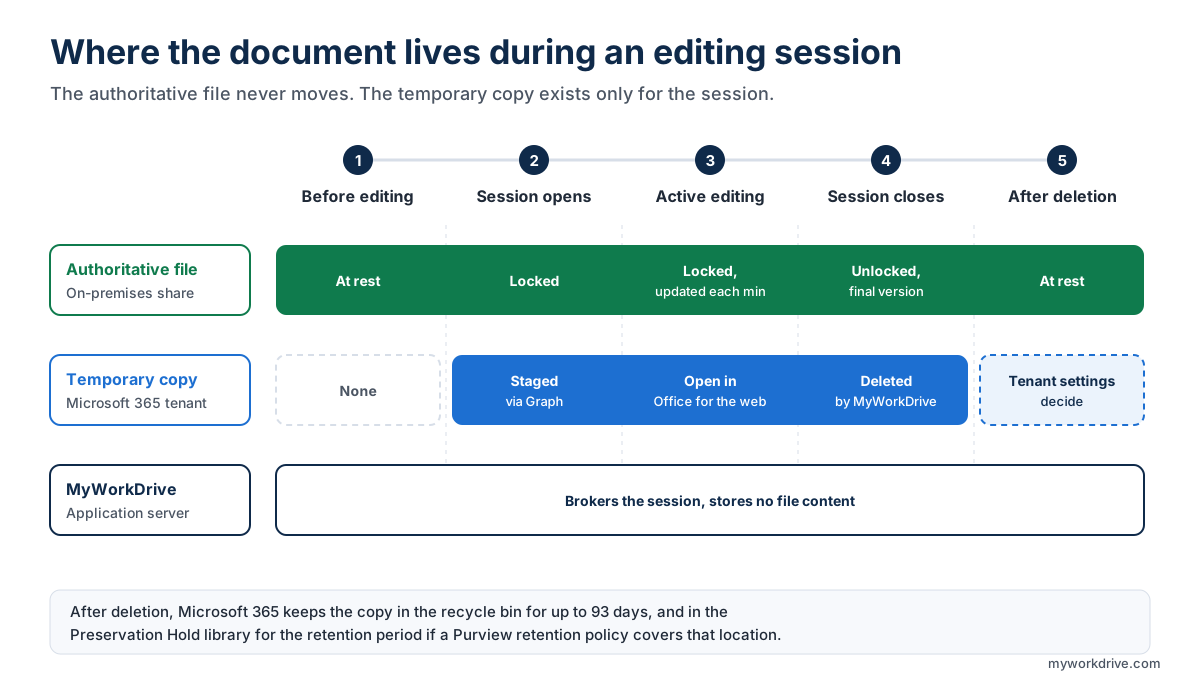
MyWorkDrive's servers act as a broker in this flow. MyWorkDrive's security documentation states that file contents do not persist on its application servers, so the content moves between your file share and your tenant.
Locks are built to survive short interruptions. According to MyWorkDrive's file locking documentation, a document opened in Office 365 gets a 20-minute lock timeout that renews while the client stays connected. A user whose laptop drops off Wi-Fi can rejoin the session before the lock expires, and a session that is abandoned clears itself when the timeout runs out.
What Happens to the Staged Copy After Deletion
When MyWorkDrive deletes the staged copy, Microsoft 365 handles it like any other deleted file. Microsoft keeps deleted SharePoint and OneDrive items for 93 days across the first-stage and second-stage recycle bins. If a Microsoft Purview retention policy covers the user's OneDrive or the staging site, the deletion also triggers a preservation copy:
“When a user changes an item that's subject to retention from a retention policy or a retention label that marks items as a record, or deletes any item subject to retention, the original content is copied to the Preservation Hold library.”
Source: Microsoft Learn, Learn about retention for SharePoint and OneDrive
Many organizations will welcome this, since each editing session leaves a recoverable record inside a compliance boundary they already govern. It becomes a problem where policy says a class of data must never reside in Microsoft 365, because the staged copy can outlast the session by weeks or months. Microsoft notes that its cleanup job can take up to 37 days to remove expired content from the Preservation Hold library, after which the content still passes through the second-stage recycle bin. Your tenant's recycle bin, retention, and hold settings govern this stage, and MyWorkDrive has no control over them.
Compliance Implications of Temporary Custody Transfer
For the length of an editing session, and possibly longer under retention settings, a copy of the file is in Microsoft's custody inside your tenant. Regulators look at every place regulated data is stored or processed. The staged copy therefore belongs in your data flow documentation even though the system of record never moves.
| Framework | What the temporary copy means | Practical position |
|---|---|---|
| HIPAA (ePHI) | Microsoft lists OneDrive for Business and SharePoint Online as in scope for its HIPAA Business Associate Agreement in Commercial and GCC, offered by default through the Data Protection Addendum to covered entities and business associates. | Staging ePHI in a covered tenant stays within Microsoft's BAA. Add the staging location to your HIPAA risk analysis. See HIPAA-compliant file access. |
| DFARS 252.204-7012 and CMMC (CUI) | The DFARS clause requires an external cloud provider that stores, processes, or transmits covered defense information to meet security requirements equivalent to the FedRAMP Moderate baseline. Microsoft's DFARS documentation names its U.S. Government offerings for this purpose and does not list commercial Microsoft 365. | Keep Microsoft 365 staging off CUI shares when the tenant is commercial. Use a self-hosted editor or desktop Office for those shares. See CMMC file sharing. |
| ITAR technical data | MyWorkDrive's own guidance states that editing modes that stage temporary copies in Microsoft 365 should not be enabled on ITAR shares. | Run a self-hosted editor on your infrastructure. See keeping ITAR and CUI files on campus. |
| GDPR and data sovereignty | Microsoft's data residency commitments for SharePoint and OneDrive depend on your tenant's sign-up geography, Advanced Data Residency, or Multi-Geo. Microsoft is a US provider, and 18 U.S.C. 2713 (the CLOUD Act) reaches data in a provider's possession, custody, or control wherever it is stored. | List Microsoft 365 as a processing location for edited files in your records of processing. Where policy rules out custody by a US provider, use a self-hosted editor. See data sovereignty. |
| Records retention and eDiscovery | Purview retention policies and eDiscovery holds can preserve the staged copy after MyWorkDrive deletes it. | Decide whether the staging location belongs inside retention scope, and record that decision with your records management team. |
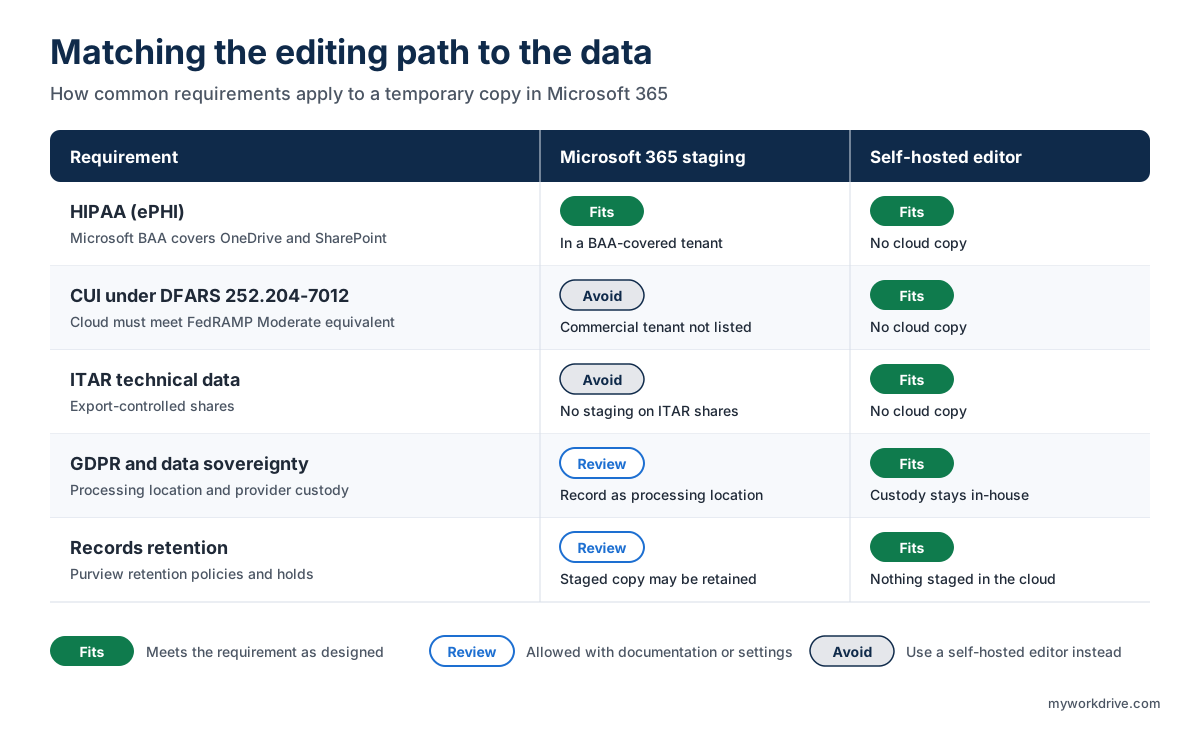
The CUI row deserves extra attention from defense contractors. The suspension of CMMC Phase 2 did not remove the DFARS 252.204-7012 obligations already in existing contracts, which our CMMC Phase 2 suspension post covers in detail. The clause applies to any cloud provider that stores or processes covered defense information, and it makes no exception for short-lived copies.
Audit evidence lives in two systems
An editing session produces evidence in two places. MyWorkDrive records access to the source file and the changes written back to it, and it can forward those events to a SIEM over Syslog. Microsoft Purview's unified audit log separately records activity on the staged copy in OneDrive or SharePoint, from upload through deletion. When an auditor asks who touched a document, the complete answer correlates both logs by user and timestamp. Our guide to file access audit logging covers the file server side.
DLP inside the browser editor
MyWorkDrive's comparison of Office Online editing options states that blocking download, Save As, and print is not available in Office for the web when files are staged in OneDrive or SharePoint. Teams that need those restrictions can switch on MyWorkDrive's DLP controls for view-only access, or use a self-hosted editor that can block print, Save As, and download. Clipboard copy is not blocked in the self-hosted editors either.
When On-Premises Editing Is the Better Architectural Choice
Microsoft 365 staging suits most general business documents, and it gives users the Microsoft editor they already know. A self-hosted editor is the stronger design when data classification or network isolation rules out a cloud copy, or when legacy file formats are part of daily work.
| Scenario | Better fit | Reason |
|---|---|---|
| General business documents, editors already licensed for Microsoft 365 | Office for the web through Graph staging | Microsoft's editor with full co-authoring, and no editor infrastructure to run |
| Light-editing or frontline users on web-capable Microsoft 365 licenses | Office for the web through Graph staging | Browser editing on existing shares without desktop Office installs |
| CUI or ITAR shares | ONLYOFFICE Docs or Collabora Online, self-hosted | The document is held in memory on your server and no cloud copy exists |
| Policy forbids any copy outside the organization | Self-hosted editor | Custody of the content never transfers to a cloud provider |
| Editing sessions must block print, Save As, and download | Self-hosted editor, or MyWorkDrive DLP view-only | Those controls are not available inside Office for the web with OneDrive or SharePoint staging |
| Legacy .doc, .xls, and .ppt files in daily use | ONLYOFFICE Docs or Collabora Online | Both edit classic formats; the Microsoft modes require conversion to .docx, .xlsx, or .pptx |
| Networks with no route to Microsoft 365 | Self-hosted editor | Graph staging depends on outbound access to Microsoft Graph |
| An existing Office Online Server deployment | Migrate to ONLYOFFICE, Collabora, or Graph staging before December 31, 2026 | Microsoft ends support for Office Online Server on that date |
Planning around the Office Online Server retirement
Office Online Server used to be the default answer for on-premises browser editing. Microsoft ends support for it on December 31, 2026, and MyWorkDrive marks its own Office Online Server integration end of life on the same date. The current self-hosted options in MyWorkDrive are ONLYOFFICE Docs, supported from MyWorkDrive Server 6.1, and Collabora Online, supported from 7.3.1. In both, the document is held in memory on a server you operate. Our post on using Office Online with Azure Files after Office Online Server end of life compares the editors in more depth.
Running both models in one organization
MyWorkDrive runs one online editing provider per server at a time, and DLP settings can disable online editing for specific shares, users, or groups. An organization that wants Microsoft 365 editing on general shares and a self-hosted editor on controlled shares has two options. It can disable online editing on the controlled shares, or it can publish those shares from a separate MyWorkDrive server configured with ONLYOFFICE or Collabora.
Editing On-Premises Files with MyWorkDrive
MyWorkDrive publishes existing Windows file shares over HTTPS and connects them to the editor that fits each data class, with no file migration. The Office editing overview lists every supported editor and its licensing requirements, and the Microsoft license optimization page explains how browser editing on file shares affects license tiers. To test Graph staging against your own shares, start with a trial or talk to the team.
Frequently Asked Questions
Can I edit files on an on-premises file server with Office for the web?
Yes. Office for the web cannot open a file directly from an SMB share, so a gateway such as MyWorkDrive copies the file through Microsoft Graph into a temporary location in your Microsoft 365 tenant, opens it in the browser, and writes changes back to the share. The original file stays on your server.
Does the file leave my network during a Microsoft 365 editing session?
A temporary working copy does. It sits in the editing user's OneDrive for Business or a dedicated SharePoint Online site in your own tenant and is deleted when the session ends. The authoritative file stays on the file share. Self-hosted editors such as ONLYOFFICE Docs and Collabora Online keep the entire session on your network.
Which Microsoft Graph permissions does MyWorkDrive use for Office Online editing?
OneDrive mode uses the delegated permissions User.Read, Files.ReadWrite.All, and Sites.Read.All, with consent granted by a global administrator. SharePoint service mode uses the application permission Sites.Selected, which gives the app access only to the single staging site that a SharePoint administrator assigns.
How often are changes saved back to the file server?
MyWorkDrive checks the staged copy for changes every minute and copies them back to the Windows file share. A final write-back runs when the user closes the browser tab, before the temporary copy is deleted.
What happens to the temporary copy after editing ends?
MyWorkDrive deletes it from OneDrive or the staging SharePoint site. Microsoft then treats it like any deleted file. It stays in the recycle bins for up to 93 days, and if a Purview retention policy covers that location, a copy is kept in the Preservation Hold library for the retention period.
Is Microsoft 365 staging appropriate for CUI or ITAR files?
Not in a commercial Microsoft 365 tenant. DFARS 252.204-7012 requires cloud providers that hold covered defense information to meet security requirements equivalent to FedRAMP Moderate, and Microsoft names its U.S. Government offerings for DFARS. MyWorkDrive recommends self-hosted editors for ITAR and CUI shares.
Do users need a Microsoft 365 license to edit through Graph staging?
Yes. Each editing user needs a Microsoft 365 business or enterprise account. Viewing files does not require one. ONLYOFFICE Docs and Collabora Online have their own licensing and do not require Microsoft 365.
What replaces Office Online Server after December 31, 2026?
For browser editing that stays on premises, MyWorkDrive supports ONLYOFFICE Docs and Collabora Online, both hosted on your own servers. Organizations that accept a temporary copy in their tenant can use Office for the web through Microsoft Graph staging.
Can desktop Office users open a file while someone edits it in the browser?
They see a file-locked message until the browser session ends, because MyWorkDrive locks the source file on the share for the duration of the session. Other browser users can still join as co-authors, since they all work on the same staged copy.
References
- Microsoft Learn: Cloud Storage Partner Program overview
- Microsoft Learn: Upload or replace the contents of a driveItem
- Microsoft Learn: Overview of Selected permissions in OneDrive and SharePoint
- Microsoft Learn: Learn about retention for SharePoint and OneDrive
- Microsoft Support: Restore deleted items from the site collection recycle bin
- Microsoft Learn: HIPAA and HITECH Act compliance offering
- Microsoft Learn: DFARS compliance offering
- Microsoft Learn: Data residency for SharePoint and OneDrive
- Microsoft Power BI Blog: Office Online Server retirement announcement
- Acquisition.gov: DFARS 252.204-7012
- GovInfo: 18 U.S.C. 2713
Start a free trialBook a demoView pricing

Daniel, Founder of MyWorkDrive.com, has worked in various technology management roles serving enterprises, government and education in the San Francisco bay area since 1992. Daniel is certified in Microsoft Technologies and writes about information technology, security and strategy and has been awarded US Patent #9985930 in Remote Access Networking.